

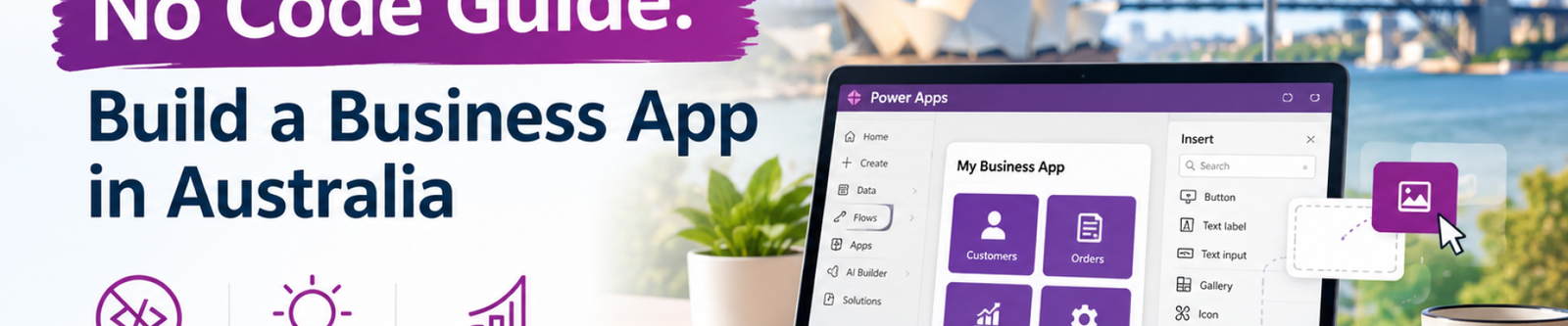
How to Build a Custom Business App Without Code Using Microsoft Power Apps
Power Apps no code development lets Australian businesses replace spreadsheets, paper forms and email chains with real apps, built in days and connected to Power Automate and Power BI.
If your team still runs key processes on spreadsheets, paper forms or long email threads, Power Apps no code development is one of the fastest ways to fix it. Microsoft Power Apps lets you build custom business apps for phones, tablets and desktops without hiring a team of developers or waiting months for a project to finish.
In this guide we walk through what Power Apps actually is, how it works alongside Power Automate and Power BI, and the exact steps to build your first business app with Power Apps no code tools. Whether you run a field services company in Sydney, a property management office in Melbourne or a growing team anywhere in Australia, the process is the same.

What Is Power Apps No Code Development?
Power Apps is part of the Microsoft Power Platform. It gives you a visual, drag-and-drop builder for creating business apps that run on the data you already have: SharePoint lists, Excel files, Microsoft Dataverse, SQL databases, Outlook, Teams and hundreds of other services.
Power Apps no code development means you design screens, forms and buttons visually instead of writing traditional code. When you need logic, such as "only show this field if the job is urgent", you use simple Excel-style formulas called Power Fx. If you can write a formula in Excel, you can build in Power Apps.
Microsoft has also added Copilot to Power Apps. You can describe the app you need in plain English, for example "an app to track equipment checked out by staff", and Copilot generates the tables and screens as a starting point you then refine.
Canvas Apps vs Model-Driven Apps
Power Apps offers two main app types. Picking the right one early saves a lot of rework.
| Feature | Canvas App | Model-Driven App |
|---|---|---|
| Design control | Full control over layout, like designing a slide | Layout generated from your data model |
| Best for | Mobile apps, field work, simple task-focused tools | Complex processes, CRM-style records, back-office |
| Data sources | SharePoint, Excel, Dataverse, SQL and many more | Microsoft Dataverse |
| Learning curve | Easiest place to start | Needs more planning of tables and relationships |
| Typical example | Site inspection or timesheet app | Client management or case tracking system |
For most Power Apps no code projects, a canvas app is the best place to start. You can always grow into a model-driven app as your processes mature.
How Power Apps, Power Automate and Power BI Work Together
An app on its own captures data. The real value comes when you connect it to the rest of the Power Platform:

- Power Apps is where your team enters and views information, such as a leave request, an inspection or a new job.
- Power Automate takes action the moment data is saved: it sends approval requests, emails customers, updates records and posts alerts in Teams.
- Power BI turns the data into live dashboards so managers can see trends, bottlenecks and performance without chasing reports.
Together, a Power Apps no code app and these two tools replace the manual "fill in the form, email it to the manager, copy it into a spreadsheet, build a report" cycle that still costs Australian teams hours every week.
Step by Step: Build Your First Business App with Power Apps No Code
Here is the practical process we follow with clients. To keep it real, we will use an example: a Sydney field services company that wants to replace paper job sheets.
Define one clear problem
Start small. "Technicians fill in paper job sheets that get lost and are typed up days later" is a perfect first problem. Write down who uses the app, what they need to record and what should happen next.
Choose your data source
If you already use Microsoft 365, a SharePoint list is the simplest place to store data. For larger or more structured apps, Microsoft Dataverse gives you proper tables, relationships and security. For our job sheet example, a SharePoint list with columns for customer, address, job type, notes, photos and status works well.
Create the app
Go to make.powerapps.com, sign in with your Microsoft 365 account and either start from your data (Power Apps builds a three-screen app automatically) or describe the app to Copilot. This is Power Apps no code in action: within minutes you have a working browse, detail and edit screen.
Customise the screens
Drag in controls such as dropdowns, date pickers, camera and signature inputs. Add your branding and colours. For the job sheet app we add a photo capture control and a customer signature pad so the technician can close the job on site.
Add automation with Power Automate
Create a flow that triggers when a job is marked complete. It can email the customer a summary, notify the office in Teams and create an invoice task in your accounting system. This is where hours of admin disappear.
Connect Power BI for reporting
Point Power BI at the same SharePoint list or Dataverse table. Build a dashboard showing jobs completed per technician, average time per job and outstanding work by suburb. Managers get live numbers instead of month-end spreadsheets.
Test, share and govern
Run the app with two or three real users for a week, fix what confuses them, then share it with the wider team. Set up security roles and a data policy in the Power Platform admin centre so the right people see the right data.
Tip: Resist the urge to build everything in version one. A focused app that people actually use beats a perfect app that never launches. Ship, gather feedback, then improve. That speed is the real advantage of Power Apps no code development.
Popular Power Apps Use Cases for Australian Businesses
These are the Power Apps no code solutions we see deliver the quickest wins across industries in Australia:
- Site inspections and safety checklists with photos, GPS location and automatic reports for WHS records.
- Leave, timesheet and expense requests with manager approvals handled by Power Automate.
- Asset and equipment tracking using barcode or QR code scanning from a phone.
- Job sheets and work orders for cleaning, maintenance and trades businesses.
- Employee onboarding checklists that assign tasks to IT, HR and managers automatically.
- Incident and issue reporting that routes problems to the right person and tracks resolution.
You can see examples of what we have delivered on our projects page.
When Power Apps No Code Is Not Enough
Power Apps no code tools take you a long way, but there are signs you will benefit from expert help:
- Your app needs to connect to an older system without a ready-made connector.
- You are dealing with complex security, multiple business units or sensitive data.
- Performance slows down as your data grows past a few thousand records.
- You are unsure which Microsoft licences your users actually need.
- Several "citizen developer" apps have popped up and nobody is managing them.
This is where a certified Power Platform consultant pays for itself. The right partner designs your data model properly from day one, builds the tricky parts and trains your team to maintain the simple parts themselves.
5 Tips to Get Your First Power Apps No Code Project Right
- Involve the people who will use it. Ten minutes with a technician or admin officer will reveal more than a week of planning.
- Plan your data first. Clean, well-named columns make every later step easier.
- Design for mobile. If your team works in the field, test on a real phone, outdoors.
- Use delegation-friendly data sources. SharePoint and Dataverse handle large lists far better than Excel files.
- Document as you go. Name your controls and flows clearly so anyone can pick the app up later.
For full technical documentation, Microsoft's official Power Apps documentation is an excellent reference.
Real-World Example: Multi-Level Annual Leave Approvals
One of the most common requests we get from Australian businesses is a proper annual leave approval process. In many teams it still works like this: an employee sends an email, the manager forgets to reply, HR finds out a week later and nobody is sure what the leave balance is. Here is how a Power Apps no code solution, combined with Microsoft Forms and Power Automate, turns that into a clear, multi-level approval workflow.

The scenario
A Sydney-based company with 60 staff wants every leave request approved by the employee's line manager. Any request longer than five working days also needs HR sign-off, because HR checks leave balances and rostering cover. Once a request is fully approved, the employee, the team calendar and the leave register should all update automatically. This is exactly the kind of process Power Apps no code tools are built for.
How the approval chain works
The employee submits a request
The quickest start is a Microsoft Form with fields for leave type, start date, end date and comments. For a richer experience, a Power Apps no code canvas app can show the employee their remaining balance and the status of past requests before they submit.
Power Automate finds the right manager
A flow triggers on every new response. Using the Office 365 Users "Get manager" action, it looks up the employee's manager straight from Microsoft 365, so there is no need to hard-code names when people change roles.
Level 1: manager approval
The "Start and wait for an approval" action sends the request to the manager. They can approve or reject straight from Outlook, the Teams Approvals app or their phone, and add a comment explaining their decision.
A condition decides if HR is needed
If the manager approves, a condition checks the number of days requested. Five days or fewer goes straight to final approval. Anything longer moves to the next level.
Level 2: HR approval
A second approval goes to the HR team. You can set it so the first HR member to respond decides, or so everyone in a group must approve, which suits larger organisations with a director sign-off.
Everyone is notified and records update
On final approval, the flow emails the employee, adds the leave to the shared team calendar in Outlook and logs the request in a SharePoint list or Dataverse table. If anyone rejects it, the employee receives the reason immediately and the flow stops.
Approval options in Power Automate
Whether your front end is a Microsoft Form or a Power Apps no code app, Power Automate offers several approval types you can mix and match:
| Approval type | How it works | Good for |
|---|---|---|
| Approve/Reject: everyone must approve | Every assigned approver has to approve | Policy changes, large purchases, director sign-off |
| Approve/Reject: first to respond | The first person in a group to respond decides | HR or finance teams sharing the workload |
| Sequential approvals | One approval action after another, each a separate level | Manager, then HR, then director chains |
| Custom responses | Your own options, such as "Approve", "Reject" or "Need more info" | Requests that often need clarification |
Extra touches that make it work in real life
- Reminders and escalation: set a timeout on the approval so that if a manager has not responded in three days, the request escalates to their manager or HR.
- Delegation: when a manager is on leave themselves, route approvals to a nominated backup.
- Audit trail: every approval, comment and timestamp is stored, which helps with internal audits and Fair Work record keeping.
- Power BI reporting: a dashboard shows leave taken by team, upcoming absences and approval turnaround times, so managers can plan rosters ahead of busy periods like Christmas.
The same pattern works for expense claims, purchase orders, overtime requests and document sign-offs. Once your first Power Apps no code approval workflow is running, adding the next one is fast. If you want help designing yours, our Power Automate services team builds these workflows for businesses across Australia every week.
Frequently Asked Questions
Can I really build a business app with Power Apps no code?
Yes. Power Apps uses a visual drag-and-drop designer and Excel-style formulas, so most business users can build simple apps without traditional coding. More complex integrations may need a developer or Power Platform consultant.
Do I need Microsoft 365 to use Power Apps?
Many Microsoft 365 business plans include Power Apps rights for apps that use standard connectors like SharePoint and Outlook. Apps that use Dataverse or premium connectors need a separate Power Apps licence.
How long does it take to build a Power Apps app?
A simple canvas app can be working within a few days. A larger business system with automation, reporting and security usually takes a few weeks, depending on scope and how many systems it connects to.
Can Power Apps work on mobile phones?
Yes. Power Apps runs on iPhone, Android, tablets and web browsers through the free Power Apps mobile app, and can use the camera, GPS, barcode scanner and offline mode.
How do Power Apps, Power Automate and Power BI work together?
Power Apps captures the data, Power Automate runs workflows such as approvals and notifications when that data changes, and Power BI turns it into live dashboards and reports for decision makers.
Can Power Automate handle multi-level approvals?
Yes. Power Automate can chain approvals in sequence, for example line manager first and then HR, and use conditions such as the number of leave days to decide who needs to approve. Approvers can respond from Outlook, Microsoft Teams or the mobile app.
Ready to Build Your First Business App?
SimpleIT4U helps businesses across Australia, from Sydney to Perth, design and build Power Apps solutions connected to Power Automate and Power BI. We work fully remotely, with on-site support available on request.
Book a Free Consultation